To prepare the computer for recording, click on the "booth record" script in the dock.
- This does two things: it wakes up the external hard drive if it has gone to sleep, and launches the "Amadeus" program that is used for recording. You may want to click it even if Amadeus is already running, just to make sure you will not experience any delays from the drive spinning up.
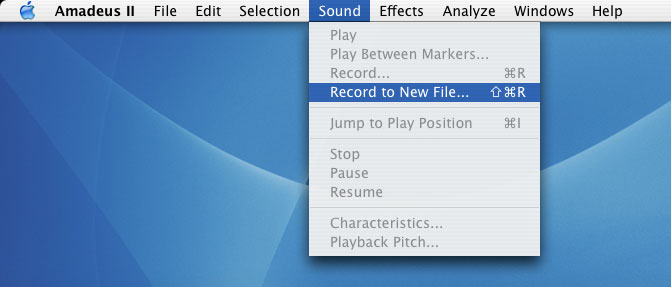
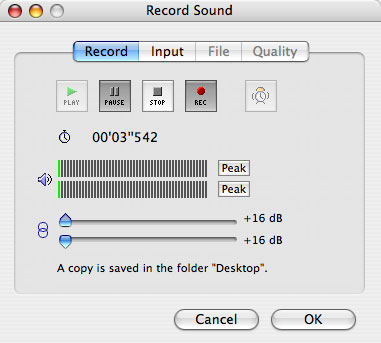
This brings up the recording dialog:
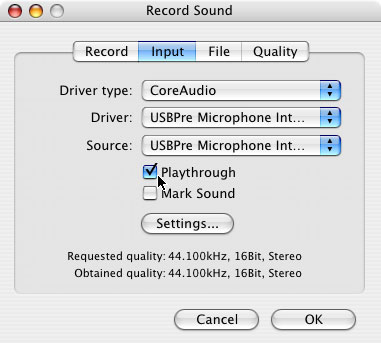
- In the "Input" section, make sure "Playthrough" is selected (so you can listen on the headphones). The quality message at the bottom can be ignored: do not use the "Input" tab to adjust the quality of your sound. (see the next step)
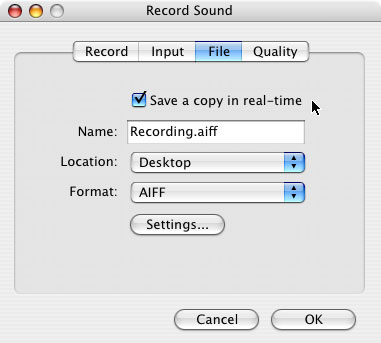
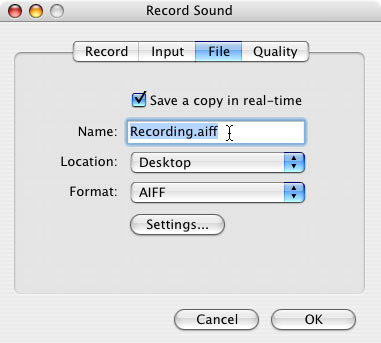
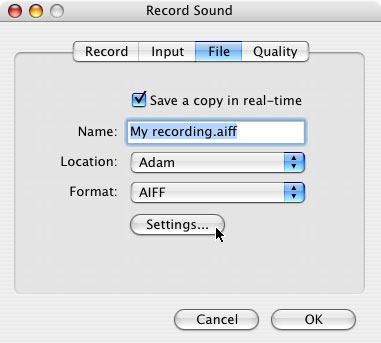
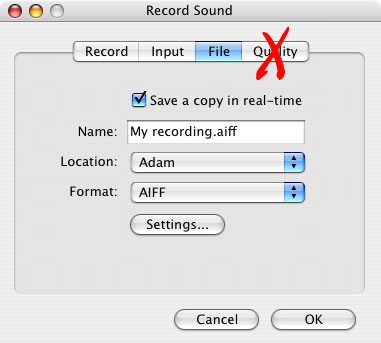
- Under "File", select "Save a copy in real-time", and give your recording a name. Use the pull-down menu to change the location to your user folder, and to select the desired format (normally, AIFF or WAV). If you are recording a mono sound (just one microphone, not both simultaneously), the AIFF format is recommended, because Amadeus lets you save a mono AIFF (but not a mono WAV).
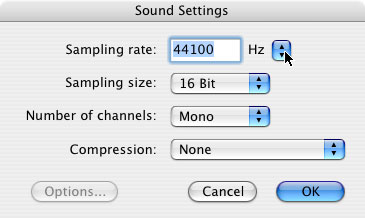
- The settings in the "Sound settings" dialog should ordinarily be: 44100 Hz (high quality) or 22050 Hz (decent quality), 16 bit sampling, mono
- IMPORTANT: you should IGNORE the "Quality" tab on the right (it doesn't affect the quality of your file). The recording quality in this tab should be set to stereo no matter what settings you use for the saved file. This is especially important if you want to record with the head-mounted mic (which is on the right, or second channel)
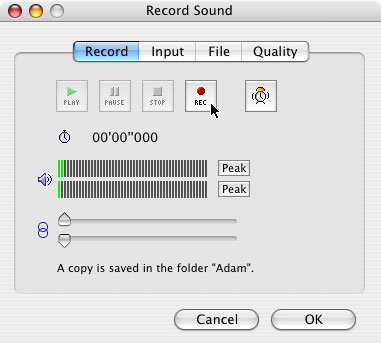
- Recording will be controlled via the buttons in the "Record" section of the "Record sound" dialog
The presentation could be controlled by Psyscope, Powerpoint, or even simply as a PDF file (one sentence per page). Load your file of stimuli onto the G4, and launch the appropriate software. Inside the booth, turn on the display on the desk; it should show the same thing as the G4 iMac outside the booth. (If not, on the G4, you may need to select "Detect Displays" in the displays menu on the right side of the menu bar)
- Tabletop mic = channel 1 (left)
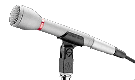
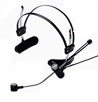
- Head-mounted mic = channel 2 (right)
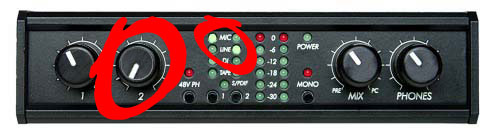
To set the input to the tabletop mic, press the little "1" button (bottom, center) repeatedly until the green light in the left column is on "Mic". (Do the same with the "2" button to select the head-mounted mic.)
To ignore the other channel, you should turn its gain knob all the way down. You may also want to set the input to "Line" for the undesired channel (to be sure that it is not receiving any input)
- CONFUSINGLY, Amadeus is not showing you the sound file that it just saved, but rather, another copy of the sound in a new (untitled) sound window. That means that if you try to close the window (or, if you click cancel from the recording dialog), it will warn you that the file has not been saved. If you clicked "Save a copy in real time" in step 3, you did already save a copy of the file. (You can confirm this by locating the file in the Finder). You can ignore the warning, or save another copy temporarily, if you prefer to play it safe. The new file that Amadeus shows you is, by default, a stereo sound, and will have one blank channel. You should discard the empty channel before saving, if you want to open it in Praat. (Or, select "export dual mono" and discard the file from the empty channel)
(I hope this might be fixed in future versions of the program, but for now this is how Amadeus works)
- PLEASE REMEMBER TO KEEP ALL OF YOUR FILES IN YOUR USER FOLDER. In addition, please back up your files religiously (the LaCie drive is not backed up), and remove large files that you no longer need
- For directions on burning a CD/DVD, open the Mac Help (under the help menu), and search for "Burn CD". The CD/DVD burner for the iMac G3 a silver box located below the USBPre (left side of the upper shelf).
- It is also possible to burn to an audio CD using iTunes, or to record to a cassette using the attached tape deck. (See separate instructions for using the tape deck)